
A shared folder is missing files. A sensitive location suddenly has different permissions. Someone appears to have accessed more documents than usual.
The first useful step is to establish what the available records show. Permission lists explain potential access, while collected activity can help explain recorded operations. Treating those as separate evidence sources makes an investigation clearer.
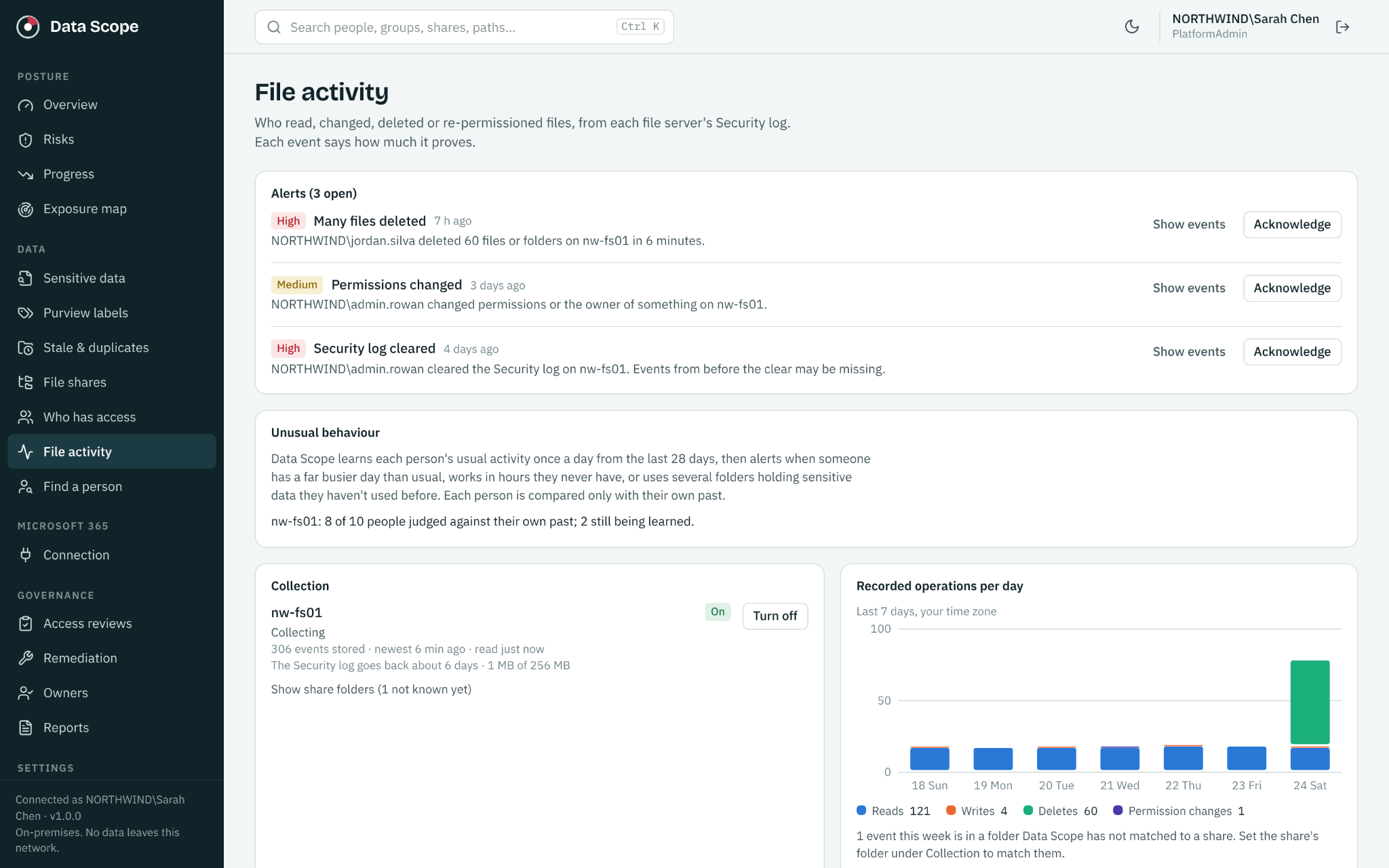
DataScope collects relevant Windows Security events agentlessly and brings file activity together with sensitive data and access context. Your team can review reads, writes, deletes, denied attempts and permission changes without deploying a DataScope endpoint agent to each file server.
Start with the event and its context
A useful review connects the account, file or folder, operation, time and source server. DataScope links alerts to supporting events so an administrator can investigate the records behind the summary.
Account activity is evidence associated with that account. It does not, by itself, prove who was physically using a device or why an operation happened. Use the event details alongside the other records and business context available to your team.
Illustrative example: an alert shows many file deletions within a short period. The owner may confirm an approved cleanup, or the activity may require further investigation. Reviewing the affected locations, account and timing helps determine the next step.
Review changes that deserve attention
DataScope can surface several types of activity for review:
- Mass deletes: identify a burst of deletion activity and inspect the supporting events.
- Denied access bursts: investigate repeated unsuccessful access attempts in their operational context.
- Permission changes: review changes affecting access or ownership.
- Collection health: see when logs were cleared, overwritten or could not be collected.
These signals help focus attention. They do not establish a cause on their own. An alert should lead to a review, with the outcome documented.
Compare unusual behavior with a person’s own history
A busy day does not mean the same thing for every account. A service account, an administrator and an employee processing monthly reports may have very different patterns.
After enough activity history is available, DataScope compares a person with their own established baseline. It can flag unusually high activity, unfamiliar working hours and use of sensitive folders outside the person’s previous pattern.
The alert explains the difference and links to supporting records. A new project, changed role or scheduled migration can explain an unusual pattern. The purpose is to make that difference visible and reviewable, rather than assume that unusual means malicious.
Check collection health before drawing conclusions
Activity analysis depends on the events that were generated, retained and available to collect. Agentless collection does not remove the need for the relevant Windows auditing and account access.
DataScope surfaces logging gaps, including cleared or overwritten logs and collection failures. Keep those limits visible in the investigation timeline. No collected event is not the same as proof that an operation never occurred.
If the available records start after the suspected event, explain that limitation and use other available evidence. Improving collection now helps future reviews, but does not reconstruct missing past events.
Use a short investigation workflow
- Define the concern. Record the affected folder, observed change and approximate time.
- Check coverage. Confirm which servers and time periods have collected activity.
- Inspect the records. Review relevant accounts, operations and supporting events.
- Add data context. Determine whether the location contains sensitive information and who can access it.
- Confirm business activity. Ask the responsible owner about approved work.
- Record the outcome. Document findings, unresolved questions and any approved follow up.
If the evidence indicates a possible active incident, follow your organization’s response process. ECC’s incident response service is available to discuss an engagement and scope.
Connect activity with governance
An activity review may reveal an access issue worth addressing even when the original event had a legitimate explanation. A broadly accessible sensitive folder, for example, may need an owner review.
DataScope combines discovery, permission paths, access reviews and follow up evidence. Your administrators make approved permission changes, and later scans help verify their effect.
The platform runs on your own server, with Windows activity included in On Prem coverage. Learn how local deployment works or review annual pricing.
See the workflow in DataScope
Explore the product using sample people, files and findings. The interactive demo requires no signup and does not connect to your environment.