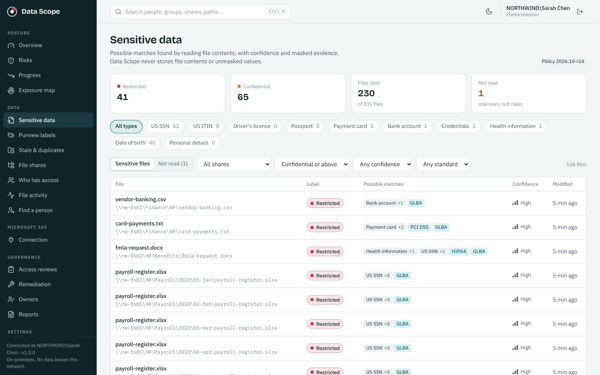
Locate sensitive information.
Find supported personal, financial, health and credential data patterns across your file shares, email and Microsoft 365 files.
Find sensitive data. Understand who can reach it. Put the next decision in the right hands.
Practical data governance software for small businesses and IT teams running Windows file servers and Microsoft 365. Connect sensitive data discovery, access reviews, Copilot readiness, Purview label visibility and activity alerts in one platform running on your own server.
No signup for the demo. Synthetic sample data. Built by East Coast Cybersecurity.
Pick a source. Follow a sample finding from discovery to a practical next step.
A sensitive payroll file is reachable through a nested Active Directory group.
Explore access reviewsSSN pattern · ###-##-####A message or supported attachment contains a sensitive data pattern.
See the mailbox workflowPayment data pattern · masked evidenceA sensitive OneDrive file is shared with an external guest, based on information readable by the scan.
See OneDrive visibilitySensitive file · external guest permissionData governance starts with visibility and becomes useful when someone can act on it. DataScope connects discovery, access context, ownership and evidence.
Find supported personal, financial, health and credential data patterns across your file shares, email and Microsoft 365 files.
Explain effective Windows permissions and identify sensitive SharePoint or OneDrive files shared outside your organization.
Run on premises access reviews, send mailbox findings to owners, and follow up with fresh scan evidence.
Shared folders grow. Permissions accumulate. Sensitive documents move into collaboration tools. DataScope helps you see what is there, who can reach it, and what needs attention.
Start with DataScope On Prem for Windows file shares and Active Directory. Add Microsoft 365 coverage using simple per user annual pricing.
Discover, investigate and govern Windows file shares in one connected workflow.
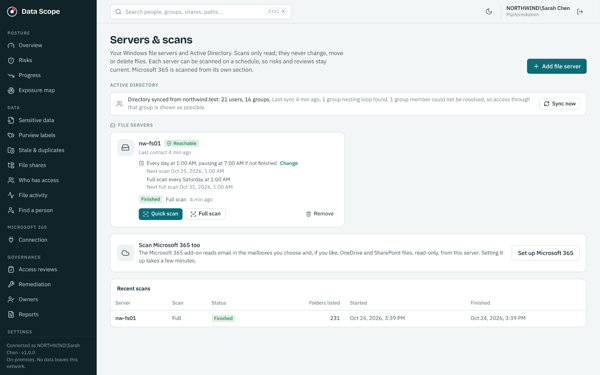
Discover and classify supported SSN, ITIN, payment data, health record and credential patterns on Windows file shares. Matched evidence is redacted rather than retaining raw sensitive values.
Combine SMB share permissions, NTFS ACLs and Active Directory membership, including nested groups. Follow the permission path that explains why someone can reach a folder.
Connect sensitive data with access breadth. Focus on locations where sensitive information is reachable by more people than expected.
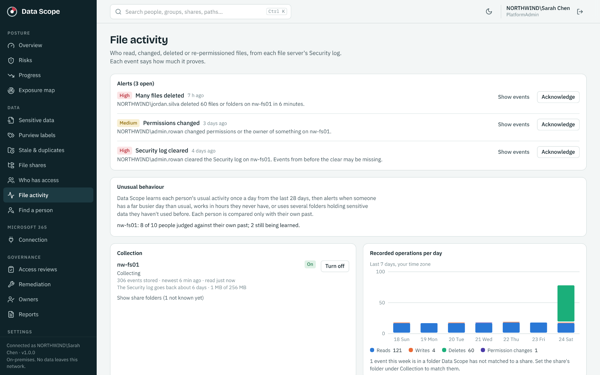
Review reads, writes, deletes, denied attempts and permission changes from Windows Security events without deploying an endpoint agent on each file server.
Surface mass deletes, bursts of denied access, permission changes and logging gaps. See when logs were cleared, overwritten or could not be collected.
Find old and likely duplicate files using age and file metadata. Reduce unnecessary storage and review information that no longer needs to remain in shared locations.
Assign business owners and backups. Give reviewers a frozen evidence snapshot and focused Keep, Remove, Investigate and Exception decisions.
Accept, snooze, reopen or route findings to IT. Administrators make approved Windows changes; DataScope tracks the work and verifies results against newer scan evidence.
Export sensitive data, access, activity, coverage, review and remediation evidence with scope and freshness attached. Preserve governance decisions and administrative actions in a tamper evident audit trail.
Control exclusions, scanning windows and throttling. Keep excluded, partial, unsupported and unreadable areas visible as coverage limitations.
Add organization specific words, phrases and patterns for project names, internal identifiers and other sensitive information. Try rules against sample text and review matches with masked evidence.
Scan supported text and data files, current and legacy Office documents, PDFs, images with OCR, saved email, Outlook PST and OST files, and ZIP, 7 Zip and RAR archives. Encrypted, partial and unsupported content stays visible.
Learn each person’s usual file activity, then flag unusually busy days, activity at unfamiliar hours and sensitive folders they have not used before. Alerts explain the baseline and link to supporting events.
Discover sensitive information across Exchange Online, SharePoint and OneDrive. Review sharing, mailbox delegates, groups and guests. Prepare for Copilot, investigate recorded activity and prioritize the exposure that needs attention.
Scan selected user and shared mailboxes for sensitive information in email messages and supported attachments. Find the mailbox, folder and message behind a finding.
Send owners findings with masked examples and links to open the affected messages in Outlook. Track what remains and confirm cleanup on a later scan.
Explore SharePoint sites and document libraries, including Teams files stored in SharePoint. See file counts, sizes and the latest scan.
Bring OneDrive files into your sensitive data discovery workflow alongside SharePoint.
Identify sensitive files shared with guests or anyone with the link, based on sharing information readable by the last scan.
See complete, partial and inaccessible scan areas. Understand what DataScope covered before interpreting the findings.
Find sensitive SharePoint and OneDrive files exposed through Everyone groups or organization links. Review broadly shared libraries and sensitive files in public Teams sites before expanding AI access.
Review Microsoft 365 and security groups, direct members, owners and guests. Connect guests and group membership to sensitive files, and spot public groups or groups without owners.
See Full Access, Send As and Send on Behalf permissions when delegate collection is enabled. Connect mailbox access with sensitive email findings.
Review collected file opens, downloads, changes, deletions and sharing events, plus delegate and administrator mailbox activity. Flag bursts of downloads, changes or deletions, guests opening many files, and access across multiple mailboxes.
Find direct file or library grants and mailbox delegates with no recorded use in 90 days. Results require a full 90 days of activity coverage and help your team decide which access to remove.
Prioritize sensitive files shared externally or across the organization, public Teams exposure, guests in groups with sensitive files, and sensitive mailbox access. Accept, snooze or route risks to IT with a recorded reason.
Start your Copilot rollout with a clearer picture of sensitive information shared too widely. DataScope brings the files, sharing paths and coverage gaps together so your team knows where to focus.
Compare what DataScope discovers with the sensitivity labels embedded in supported files on Windows shares, SharePoint and OneDrive. Give your team a focused list of labeling gaps to review.
Bring investigations, audit evidence and daily improvements into the same governance workflow.
Track daily risks, exposed sensitive files, labeling gaps, scan coverage, ownership and remediation. Compare 30 days, 90 days or a year and export a printable report or CSV for leadership.
Bring together recorded accounts, mailbox and OneDrive, file names, stored scan evidence, access grants, ownership and activity summaries for a personal data request. Administrator searches require a reason and are audited.
Choose applicable standards, configure which data categories and confidence levels count, and filter findings, exposure and risks. Export evidence and coverage gaps for an assessor; the reports do not certify compliance.
Identify unusually high activity, unfamiliar working hours and use of sensitive folders outside a person’s established pattern. Review the baseline and supporting events across Windows file servers and Microsoft 365 files.
Progress starts when collection begins. Person searches use collected records rather than a fresh search of all file contents. Unusual activity needs sufficient history, and Microsoft 365 activity depends on enabled audit collection and available records.
Years of messages and attachments can leave personal records, financial information and other sensitive content scattered across inboxes and shared mailboxes. DataScope brings those findings into your data governance workflow.
IT can explain permission paths. Business owners can decide who still needs access. DataScope brings both perspectives into a repeatable review process.
Reviewers work from a frozen snapshot, so the record shows the evidence they actually reviewed. Decisions stay connected to remediation and verification.
Explore access reviews in the demoIdentify sensitive locations, inspect effective access, and confirm the responsible owner.
Record Keep, Remove, Investigate or Exception decisions against the evidence snapshot.
IT carries out changes. DataScope follows up with fresh scan evidence and a documented outcome.
Explore how discovery becomes an owner decision and a verified follow up.
An illustrative scan finds payroll data in a shared folder. DataScope connects the sensitive finding to its location and shows the scan scope.
A finding gives you a place to start, with masked evidence and scan context.
A sample employee has access through Helpdesk, nested in Finance Operators. Effective access combines share permissions, NTFS ACLs and directory membership.
Review the evidence path with the team responsible for the folder.
The Finance owner receives a frozen evidence snapshot. Try a sample decision below to see how the follow up changes.
Choose a sample decision to see the follow up.
The decision is recorded against the evidence the owner reviewed.
After IT makes an approved Windows change, a newer scan can verify its effect. This example illustrates a completed removal, rather than changing a real permission.
Keep the review decision, follow up and evidence together for reporting.
The On Premises edition runs inside your network. Customer files, findings, access evidence and governance records stay in your environment.
DataScope finds sensitive data and who can access it, across your Windows file shares and Microsoft 365. It runs entirely on your own server, and your data never leaves your network.
Simple per user pricing, billed yearly. Support and all updates included.
Count enabled accounts belonging to people or services. Disabled accounts and shared mailboxes are free.
Billed yearly. Support and all updates included.
per year · Billed yearly
250 users × $20 per user / year
$5,000 annual minimum applies.
Contact us| Coverage | Up to 499 users | 500 to 999 users | 1,000 to 2,499 users |
|---|---|---|---|
| DataScope On PremWindows file shares and Active Directory | $20per user / year | $18per user / year | $16per user / year |
| Microsoft 365 add onExchange mail, OneDrive, SharePoint, Teams groups and guests, Copilot readiness, Purview labels, alerts | +$20per user / year | +$18per user / year | +$16per user / year |
2,500 users or more? Contact us for a quote.
$5,000 minimum per year for On Prem alone, or $10,000 with the Microsoft 365 add on.
A user is an enabled account belonging to a person or service. Disabled accounts and shared mailboxes are free. The Microsoft 365 add on uses the same licensed user count as On Prem.
Partner pricing for IT service providers: Contact us
DataScope On Prem is $20 per user per year for up to 499 users, $18 for 500 to 999, and $16 for 1,000 to 2,499. The optional Microsoft 365 add on costs the same per user in each tier. An annual minimum of $5,000 for On Prem alone or $10,000 with the Microsoft 365 add on applies. Contact us for 2,500 or more users. Support and all updates are included.
Exchange Online user and shared mailboxes, including messages and supported attachments, plus SharePoint sites and libraries, Teams files stored in SharePoint, and OneDrive. It also includes Copilot readiness, groups and guests, optional mailbox delegate collection, Microsoft 365 activity and alerts, unused access analysis and cloud risk triage. Collection depends on enabled sources and tenant permissions.
It highlights sensitive SharePoint and OneDrive files exposed through Everyone groups, organization links and public Teams sites. Results use the sharing and group information collected by the last scan. This is an oversharing assessment, not a test of actual Copilot answers or a guarantee that every exposure has been found.
No. It reads embedded sensitivity labels from supported files and identifies sensitive files with missing labels or labels mapped to a lower sensitivity level. Administrators can set the intended level of a label in DataScope; changes to the labels themselves remain in Microsoft Purview or Office.
After enough activity history is available, DataScope compares a person with their own baseline to flag unusual volume, hours or use of sensitive folders on file servers and in OneDrive and SharePoint. Each alert explains the difference and provides events to investigate. An alert is a lead for review, not proof of misuse.
Administrators can search the records DataScope has already collected for a person: accounts, mailbox and OneDrive, names in files and email subjects, stored scan evidence, sharing, ownership and activity summaries. Searches require a reason and are audited. This does not search every file’s full contents or guarantee a complete response to a request.
Yes. Track daily counts for risks, sensitive data exposure, Purview labeling, scan coverage, ownership and remediation. Export a CSV or printable report for management and audit discussions. History begins when the feature starts collecting; earlier history is not reconstructed.
Data governance software helps organizations understand where information lives, what is sensitive, who can access it, and who is responsible for reviewing it. DataScope supports this work through discovery, Windows access analysis, owner reviews, mailbox reports and evidence of follow up.
DataScope provides discovery findings, access review decisions, coverage information and remediation evidence that can support your governance and audit work. Your organization defines its requirements and controls; using the software does not automatically establish compliance.
No. Sharing describes who could open a file at the last scan. It is not evidence that a guest or link recipient actually accessed it.
It evaluates SMB share permissions, NTFS ACLs and Active Directory membership together, including nested groups. Permission paths explain the access and keep uncertainty visible.
No. DataScope remains read only for customer content, Windows permissions and Active Directory. Your administrators make approved changes; DataScope tracks the work and verifies results with newer scan evidence.
No. Relevant Windows Security events are collected agentlessly using the access available to the scan account. Collection gaps and missed records are surfaced.
Yes. On Premises includes scan scope, exclusions, scheduling and throttling, plus reports for sensitive data, access, activity, coverage, ownership, reviews and remediation.
Yes. The interactive demo uses synthetic people, files and findings, requires no signup, and does not connect to your environment. Contact ECC to discuss deployment.
Connect access evidence, business ownership and follow up.
Read the guideStart with scope, discover relevant information, and prioritize review.
Explore data discoveryUnderstand why group membership is only part of the picture.
Review permission pathsFollow sensitive data, permission paths, owner access reviews and remediation in the interactive demo.
Synthetic sample data. No signup. No connection to your environment.
Practical guides to affordable governance, local deployment and Microsoft 365 exposure.
Find sensitive email and attachments with DataScope. Give mailbox owners masked findings, review delegate access and verify cleanup with later scans.
Read the guideCompare sensitive data findings with embedded Microsoft Purview labels. Use DataScope to prioritize missing labels and mismatches for your team to review.
Read the guideReview file reads, writes, deletes and permission changes with DataScope. Investigate unusual activity and understand the limits of collected event evidence.
Read the guide