
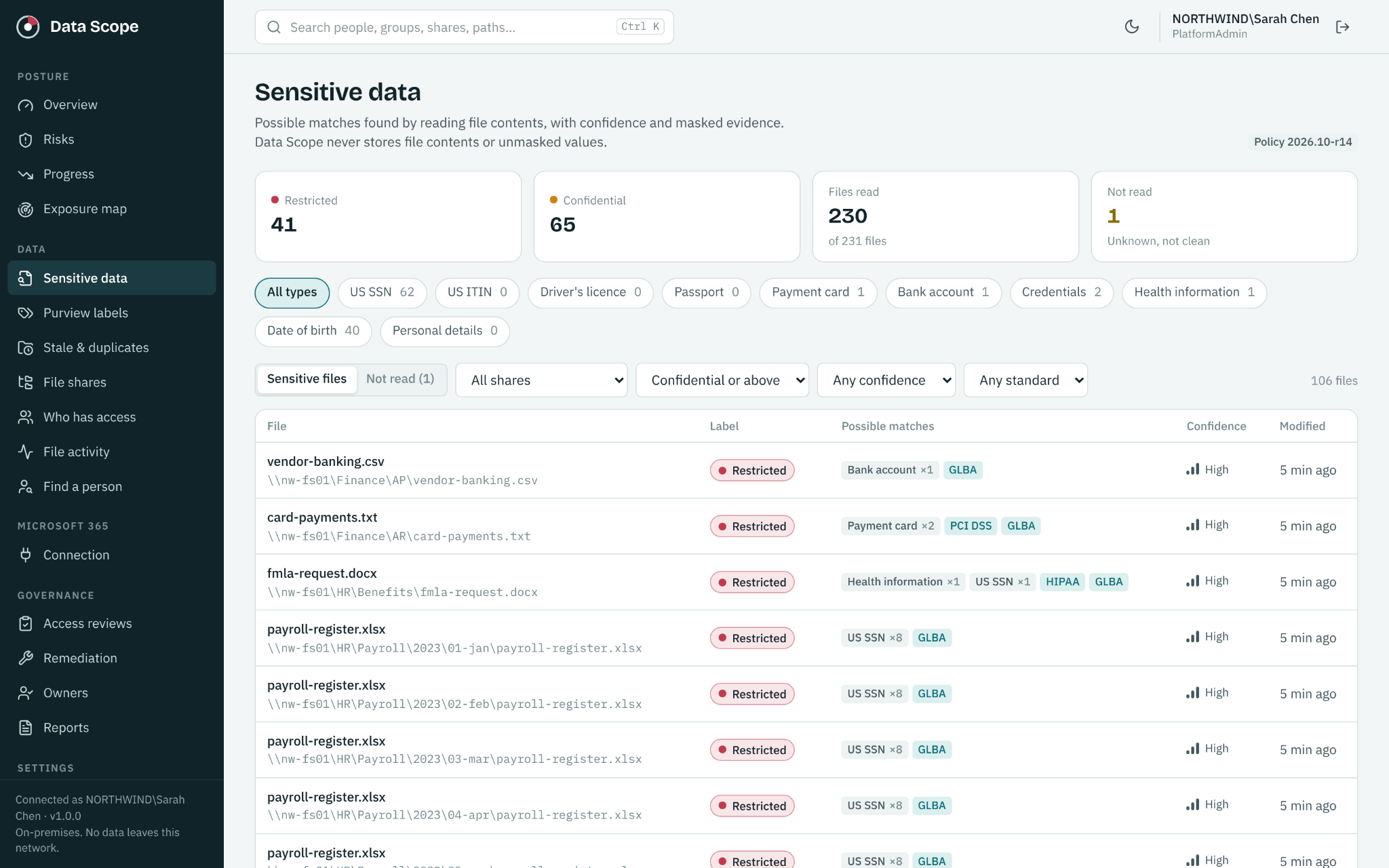
Having sensitivity labels available is a starting point. The next question is whether the files containing sensitive information have labels that match your organization’s intended handling of that information.
A payroll export might contain sensitive records but have no inspected embedded label. Another document might have a label whose configured sensitivity level is lower than the content DataScope discovers. Both deserve a closer look.
DataScope connects sensitive data discovery with Microsoft Purview label visibility on supported files across Windows shares, SharePoint and OneDrive. It gives your team a focused list to review while label changes remain in your Microsoft tools.
Compare the content finding with the label
A useful label review needs two pieces of evidence: what sensitive content was detected and what embedded label was readable.
DataScope reads embedded labels from supported Word, Excel, PowerPoint, PDF and email files. Optional tenant permissions allow it to import label names and protection details from Microsoft 365. Administrators can set the intended sensitivity level of a label in DataScope so comparisons reflect the organization’s interpretation.
That mapping matters. A label name alone does not tell the review process how the organization intends to classify it. Unknown label levels should remain unknown until an administrator supplies the appropriate context.
Separate a missing label from a label that was not inspected
These situations need different follow up:
| Finding | What to review |
|---|---|
| Inspected sensitive file with no embedded label | Confirm the content and decide whether a label is needed under your policy. |
| Label mapped below the discovered sensitivity | Review both the content finding and the label mapping before deciding on a change. |
| Label not inspected | Investigate the inspection limitation; do not count it as confirmed absence. |
| Unknown label sensitivity level | Confirm the intended level. DataScope does not judge an unknown mapping. |
Keeping these states separate makes the review list more useful. It prevents a collection gap from becoming an unsupported conclusion about the file.
Work through a label gap with the owner
Illustrative example: a supported spreadsheet contains a sensitive personal data pattern. DataScope inspects its embedded label and identifies a mismatch against the configured label level.
- Validate the finding. Review the masked evidence, file location and inspection coverage.
- Check the mapping. Confirm what the current label is intended to represent.
- Ask the owner. Establish the file’s business purpose and intended handling.
- Apply the approved change. Use the appropriate Microsoft tools and your organization’s process.
- Revisit the evidence. Review a later scan to see the current label and any remaining gap.
A mismatch is a reason to investigate. It is not a substitute for a classification decision by the responsible team.
Review access alongside labeling
Labeling and access visibility answer related questions. A label gap identifies something to review about classification. The permission and sharing views help explain who can reach the information.
Prioritize files where a sensitive finding, broad access and a label gap occur together. On Windows shares, review the permission path. For Microsoft 365, review the sharing information available from the last scan and consider the wider oversharing assessment.
Understand the inspection boundaries
DataScope does not apply, remove or change labels. Labels inside archives and attachments, and container labels on sites, teams and groups, are outside this label inspection. Encrypted contents remain uninspected even when a label is visible.
Those boundaries are part of the evidence. A visible label does not mean DataScope inspected encrypted content, and an unsupported item should not be reported as a confirmed clean result.
Show progress through evidence
Progress reporting can track labeling gaps alongside sensitive data exposure, scan coverage and remediation over time. Review the scope with the numbers: more gaps after adding a new source may reflect improved coverage rather than deterioration in the locations already reviewed.
Start with a small, important set of files and a clear owner. DataScope runs on your own server, and your team controls the review and follow up. Explore the feature and pricing overview or calculate the coverage you need.
See the workflow in DataScope
Explore the product using sample people, files and findings. The interactive demo requires no signup and does not connect to your environment.